
1. Overview
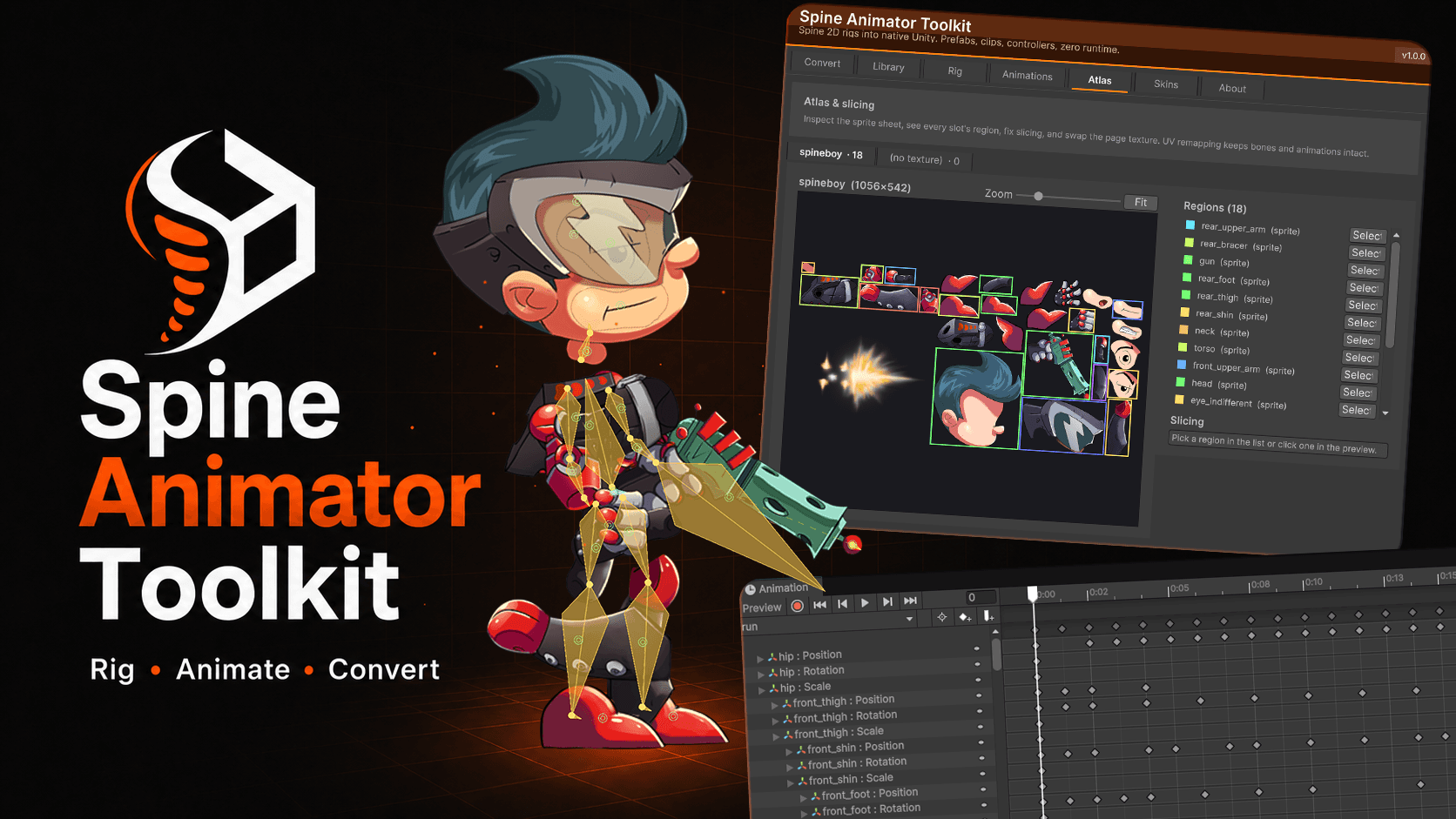
Spine Animator Toolkit is a Unity Editor extension that converts Esoteric Software Spine rigs into native Unity content: standard AnimationClips, AnimatorControllers, SpriteRenderer or SkinnedMeshRenderer hierarchies, and Prefabs.
The toolkit resolves every Spine feature offline at build time: IK chains, transform constraints, path constraints, mesh deform, draw order, skin swaps and slot color tinting are all sampled into curves the Unity Animator can play back without any custom runtime. The result is a prefab you can drag into a scene, hand to Timeline, drive from Mecanim, layer with Animation Rigging constraints, or load via Addressables — just like any other Unity asset.
What you get
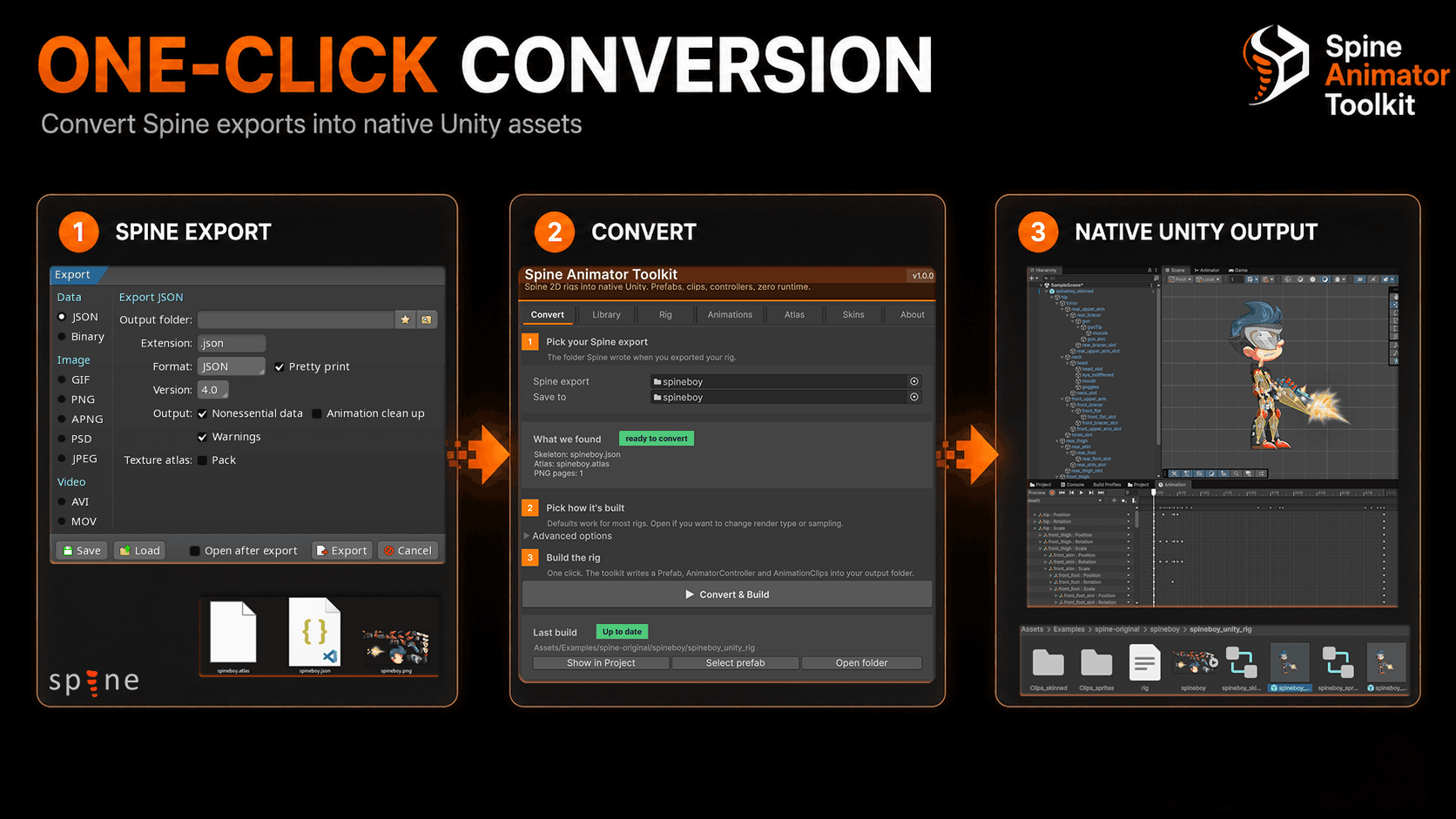
- One-click conversion — scan a folder, pick an output mode, hit Build.
- Four output modes — Sprite (atlas), Sprite (separate), SkinnedMesh, or Dual.
- In-engine mesh editing — move vertices, capture BlendShapes, retopo without leaving Unity.
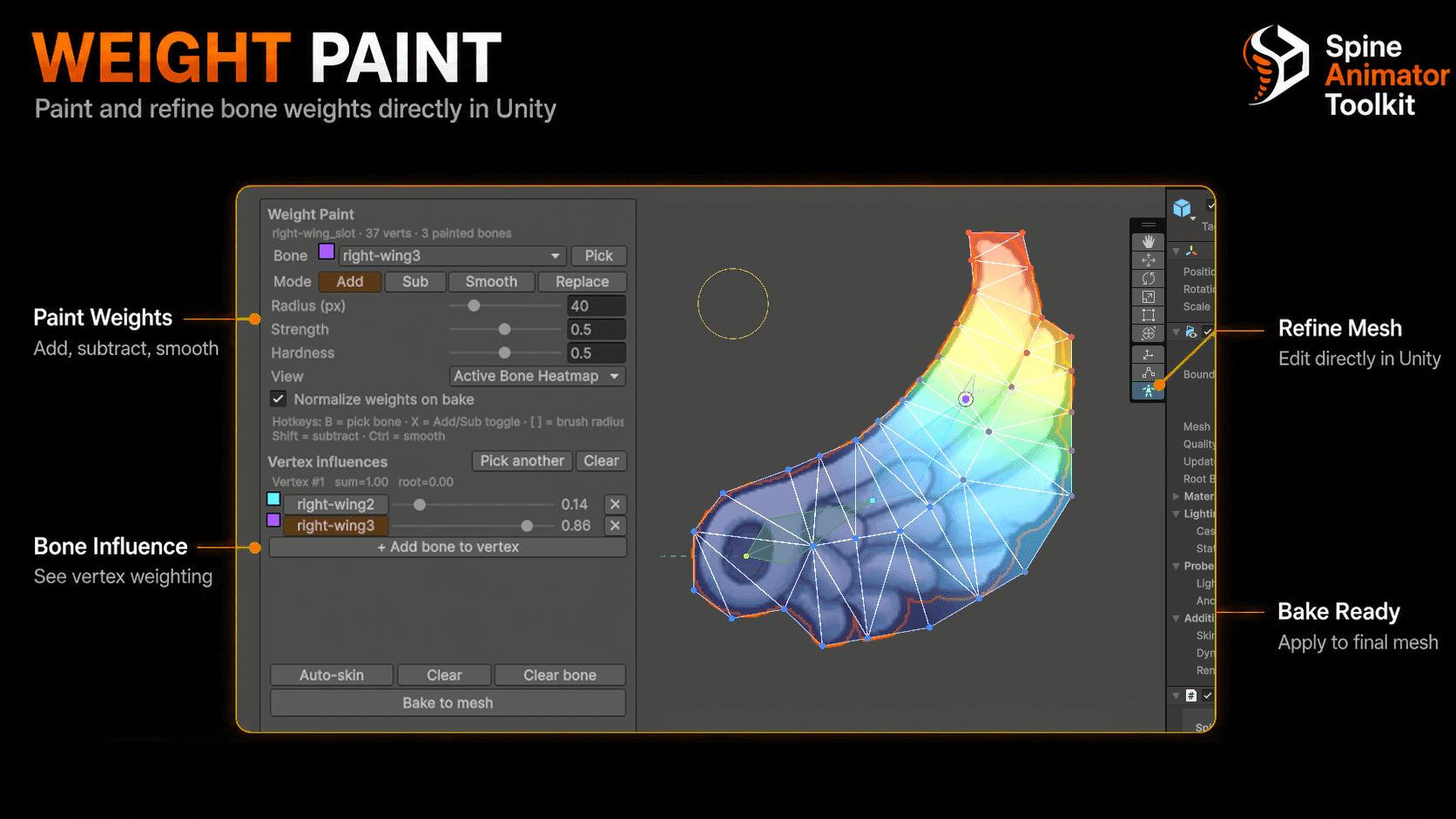
- In-engine weight painting — add/subtract/smooth bone weights with brush controls and a heatmap.
- Zero runtime dependency — baked output works in empty projects, even without the toolkit DLL.
- Source-available editor — the importer ships as readable C#; fork or hook freely.
Who it’s for
- 2D game teams already shipping with Unity who want native, debug-friendly playback.
- Studios moving off the Spine runtime to reduce binary size and external dependencies.
- Mobile / WebGL teams where every kilobyte and every IL2CPP managed reference counts.
- Tooling teams who need rigs to slot into Timeline / Mecanim / Animation Rigging without bridging layers.
2. Core concepts
Three ideas drive everything in the toolkit. Understanding them up front makes every later section easier.
Offline constraint resolution (“baking”)
Spine rigs use IK, transform, path and physics constraints that solve every frame at runtime. The toolkit walks the rig through each animation at a fixed bake rate, runs the full Spine constraint stack each sample, and writes the resulting bone-local TRS values directly into Unity animation curves. At play time the Animator just interpolates keyframes — no solver, no allocation, no garbage.
When a particular constraint must react to runtime input (e.g. an IK target driven by the player), the toolkit can preserve the constraint as a live component instead of baking it. See Constraint coverage.
Slot ↔ Renderer mapping
Each Spine slot maps to one Unity renderer. In Sprite modes the slot becomes a SpriteRenderer with its sorting order taken from Spine’s draw order. In SkinnedMesh mode all attachments are merged into a single SkinnedMeshRenderer with per-attachment sub-meshes and BlendShapes for mesh deform.
Curve quantization
Sampled curves are quantized: identical adjacent samples collapse into a single keyframe with constant tangents. A 60-fps walk cycle whose tail wags only every 5 frames keys exactly four times, not sixty. Clip sizes stay tiny even at high bake rates.
Eps tolerance
The quantization tolerance (eps in the importer settings, default 0.0001) controls how aggressively keys collapse. Raise it for smaller clips at the cost of slight motion drift; lower it for frame-exact fidelity at the cost of bigger clips.
3. Installation
Spine Animator Toolkit ships as a single .unitypackage from the Unity Asset Store. After purchase:
- In Unity: Window → Package Manager → My Assets → find Spine Animator Toolkit → Download → Import.
- Alternatively, double-click the downloaded
SpineAnimatorToolkit-<version>.unitypackage. - Accept all files in the import dialog. The toolkit installs to
Assets/SpineAnimatorToolkit/.
What gets installed
Assets/SpineAnimatorToolkit/
   Editor/   SpineAnimatorToolkit.Editor.dll       (editor-only)
             SpineCsharp/                          (vendored Spine 4.3 C# parser)
   Runtime/  SpineAnimatorToolkit.Runtime.dll
             SpineIK.cs, SpinePathConstraint.cs, ...
   README.md
   CHANGELOG.md
   LICENSE.md
   Third-Party Notices.md
   package.json
   Documentation~/    (full reference, including rig.json format spec)
   Samples~/BasicRig/ (importable sample)
The runtime DLL is only needed when a baked prefab still references live constraint components (e.g. a SpineIK that you opted to keep dynamic). For purely-baked output the DLL is stripped automatically.
System requirements
- Unity: 2021.3 LTS or newer (2022 LTS & 2023 LTS supported).
- Scripting backend: Mono or IL2CPP. .NET Standard 2.1 API compatibility.
- Render pipeline: Built-in, URP, or HDRP — output is standard renderers.
- Spine source: exported from Spine 3.8 or newer (4.x recommended).
4. Quickstart
Convert your first Spine rig in about a minute.
- Drop your Spine export into the project anywhere under
Assets/. A typical export is three files:character.skel(binary) orcharacter.jsoncharacter.atlascharacter.png(the packed atlas)
- Open Window → Spine Animator Toolkit → Toolkit Window.
- Click Scan project. Every Spine source found is listed.
- Pick an Output mode for the rig (Sprite / Separate / SkinnedMesh / Dual). Defaults come from your project settings.
- Click Build (or Build all for batch).
You get a folder like:
Assets/<your-output-root>/character/
   character.prefab            <- drag into a scene, press Play
   character.controller        <- AnimatorController
   Animations/
      idle.anim
      walk.anim
      run.anim
   character_atlas.png         <- only in Sprite mode (reuses your atlas)
That’s it. Drop character.prefab into any scene and press Play. No additional setup, no runtime DLL hookup, no Spine dependency.
5. Visual Rig Builder
No Spine export? You can build a fully native rig from scratch, directly inside Unity, with the Visual Rig Builder. It is a no-runtime, no-Spine path: lay out bones on a canvas, drop your sprites onto the bones they belong to, and click Build rig to get the exact same SpineRig prefab the converter produces.
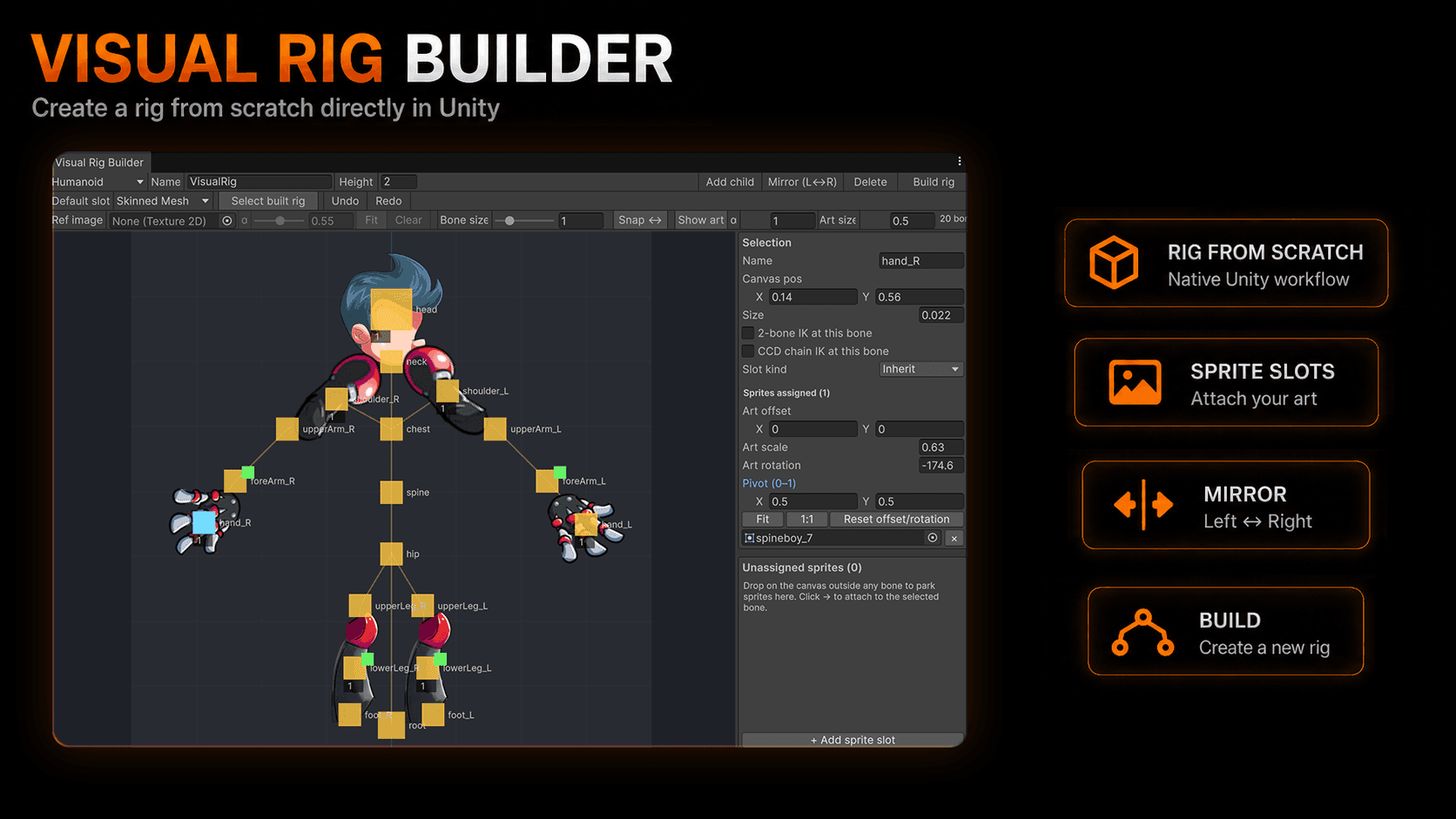
Open it from Window → Spine Animator Toolkit → Visual Rig Builder, or click ✓ Open Visual Rig Builder… at the top of the new-rig wizard.
Workflow
- Pick a preset (Humanoid seeds a ready-made spine/arms/legs hierarchy) or start empty and Add child bones one by one.
- Drag bone joints on the canvas to pose the skeleton. Each bone is oriented toward its child, exactly like Spine, so the built rig matches what you see.
- Drop a sprite onto a bone to assign it, or select a bone and use + Add sprite slot. Unassigned sprites can be parked on the canvas and attached later.
- Tune each part in the Selection inspector: art offset, art scale, art rotation, and a normalized pivot (0–1). Fit and 1:1 are one-click sizing helpers, and Reset offset/rotation clears manual tweaks.
- Click Build rig. Select built rig re-selects the last result so you can iterate.
Slot kinds (per part)
Set a project-wide Default slot and override it per bone with the Slot kind dropdown:
- Sprite — a classic
SpriteRendererattachment. Lightest, ideal for static parts. - Mesh quad — a textured quad you can later refine in the Spine Mesh Tool and paint weights on.
- Skinned mesh — the sprite’s tight tessellated mesh, skinned to the bone you assigned it to, so it deforms with the rig. Each skinned part stays bound to its bone and is placed to match the canvas exactly.
- Inherit — use the project default.
Bones, IK & mirroring
Toggle 2-bone IK or a CCD chain IK on any bone and the builder wires up the matching solver with its control target placed at the end effector. Mirror (L↔R) duplicates a side of the rig and flips it, so symmetrical characters only need to be authored once.
Convenience
A reference image can be loaded behind the canvas for tracing, with adjustable opacity and a Snap grid. Bone size and Art size sliders scale the gizmos and the placed art. Every action is undoable — Undo / Redo step through your edits so you can experiment freely.
6. The Toolkit window
Everything authoring-related happens in Window → Spine Animator Toolkit → Toolkit Window. The window is divided into four panes.
Source pane
Lists every Spine source (.skel / .json) found under your project. Use the search box to filter, or click Scan project after dropping new exports in.
Per-rig settings pane
Selecting a rig opens its override stack: output mode, bake rate, atlas slicing policy, output folder, and constraint preservation toggles. All overrides are saved to a sidecar .meta on the source so they survive re-imports.
Preview pane
A live preview of the rig in its current skin and animation. Scrub the timeline, switch skins, toggle bones/slots/regions/meshes for debugging. What you see is the baked result, not the Spine runtime — so any visible drift means the bake settings need tuning.
Output pane
The Build button, a per-rig log, and quick links to the produced prefab, controller and clips. Errors and warnings are clickable; they jump straight to the offending bone, slot or attachment.
7. Output modes
Pick one mode per rig (or use Dual to ship both):
Sprite (atlas)
Reuses your original Spine atlas PNG. Each slot becomes a SpriteRenderer with a sliced sprite. Smallest disk footprint, fastest import, ideal for most 2D games.
Sprite (separate)
Exports one PNG per attachment instead of slicing the atlas. Useful when you want per-attachment compression overrides or to swap individual parts at runtime.
SkinnedMesh
Builds a single SkinnedMeshRenderer with per-vertex bone weights. Required for mesh deform, BlendShape support and smooth bone-vertex interpolation.
Dual
Generates Sprite and SkinnedMesh prefabs side by side. Switch at runtime based on quality tier or platform.
Mode comparison
| Aspect | Sprite (atlas) | Sprite (separate) | SkinnedMesh |
|---|---|---|---|
| Renderer | SpriteRenderer per slot | SpriteRenderer per slot | Single SkinnedMeshRenderer |
| Draw calls | Batched per material | Batched per atlas group | 1 per submesh |
| Mesh deform | No | No | Yes (BlendShapes) |
| Smooth skinning | No | No | Yes |
| Disk size | Smallest | Medium | Medium-large |
| Import time | Fastest | Fast | Slowest |
| Animation Rigging | Limited | Limited | Full support |
Curve baking
In all modes, animation curves are sampled post-constraint at the configured frame rate. That means IK, transform constraints, path constraints and physics constraints are resolved offline and baked directly into the AnimationClip curves. At play time Unity just interpolates keyframes — no constraint solver runs.
8. Generated asset layout
Every build produces a self-contained folder tree under your Output root. Knowing the layout makes integration, versioning and Addressables setup straightforward.
Assets/<OutputRoot>/<rigName>/
  <rigName>.prefab                Drag this into your scene.
  <rigName>.controller            AnimatorController, one state per clip.
  <rigName>.avatar                Humanoid/Generic Avatar (Generic by default).
  Clips/
    idle.anim
    walk.anim
    run.anim
    ...                           One .anim per Spine animation.
  Materials/
    <rigName>_default.mat         Auto-detected based on render pipeline.
    <rigName>_<blendMode>.mat     Extra mats for additive/multiply slots.
  Textures/
    <rigName>_atlas.png           Sprite mode: reused Spine atlas.
    <attachment>.png              Separate mode: one PNG per attachment.
  Meshes/                         SkinnedMesh mode only.
    <rigName>.asset               The merged SkinnedMesh asset.
  rig.json                        Toolkit-internal manifest (regenerated each build).
Reusing the atlas
In Sprite (atlas) mode the toolkit reuses your original Spine PNG verbatim. Each slot gets a Sprite whose rect points into the atlas; no pixels are repacked, no compression loss. Switching the atlas texture’s import settings (filter mode, compression, max size) works exactly like any other Unity sprite atlas.
Versioning the output
Both the source .skel / .json and the generated folder should be committed. The generated folder is fully derivable from the source plus the per-rig settings, but committing both makes diffs reviewable and avoids forcing artists to re-build on every checkout.
Addressables
Mark the generated prefab Addressable. Unity will pull in only the materials, textures, clips and the controller it references. Because the Toolkit’s runtime DLL is not referenced by purely-baked output, your remote bundle stays minimal.
9. Spine Mesh Tool
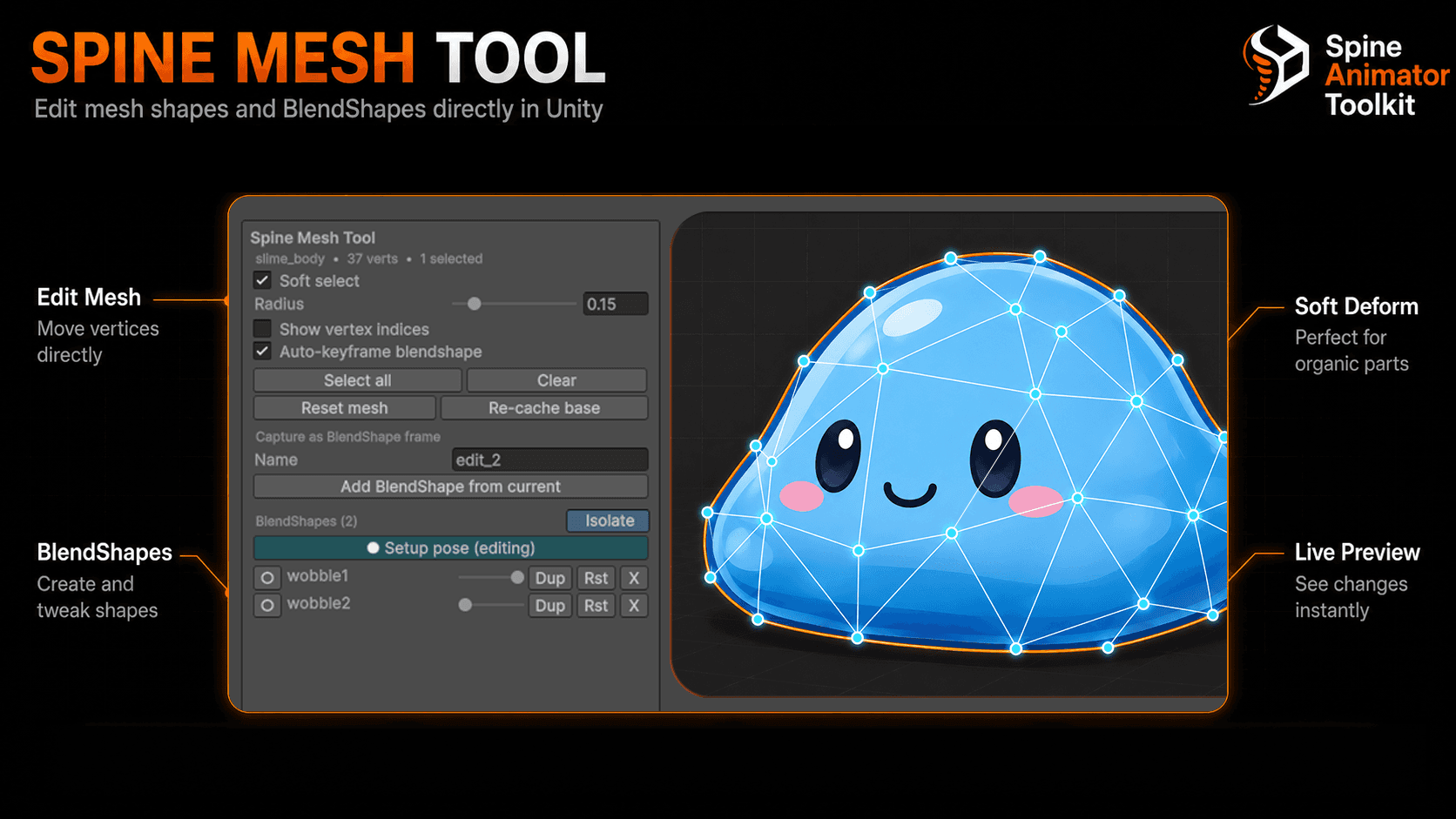
The Spine Mesh Tool lets you edit mesh attachment shapes and create BlendShapes directly in Unity — no round-trip through Spine. Open it from the prefab’s inspector or via Tools → Spine Animator Toolkit → Mesh Tool.
Editing vertices
- Click-and-drag a vertex to move it. Hold Shift to constrain to an axis.
- Soft select propagates the move to neighbouring vertices with falloff over the configured Radius.
- Select all + drag for whole-attachment offsets.Reset mesh reverts to the baked source pose.
- Re-cache base commits the current pose as the new “setup” pose, so future BlendShapes deform from that point.
Capturing BlendShapes
Enter a name (e.g. wobble1), pose the vertices, and click Add BlendShape from current. The delta is captured as a Unity BlendShape frame on the SkinnedMesh. With Auto-keyframe blendshape enabled, the active animation clip gets a curve driving the new BlendShape from 0 to 100 over the current preview range.
Managing BlendShapes
- Dup — duplicate a shape (for symmetric edits).
- Rst — reset shape to its captured delta.
- X — delete the shape and any curves driving it.
- Isolate — hide other shapes for clean editing.
Captured shapes are saved on the SkinnedMesh asset itself, so they survive prefab re-imports unless you re-bake the rig with a different topology.
10. Weight Paint
The Weight Paint tool refines per-vertex bone weights on SkinnedMesh output. Open it from the SkinnedMesh slot inspector or Tools → Spine Animator Toolkit → Weight Paint.
Brush modes
- Add — increase the active bone’s weight on touched vertices.
- Sub — decrease the active bone’s weight (other bones absorb the difference proportionally).
- Smooth — average each vertex’s weights with its neighbours.
- Replace — set the active bone’s weight to the brush strength.
Controls
- Radius (px) — brush footprint.
- Strength — per-stroke delta intensity.
- Hardness — falloff curve across the brush radius.
- Normalize weights on bake — force each vertex’s weights to sum to 1 when committing.
Heatmap views
The View dropdown shows weight visualisations:
- Active Bone Heatmap — cool/warm color for the active bone’s influence.
- All-bones color — assigns each bone a unique colour for at-a-glance ownership.
- Vertex influences — per-vertex inspector lists all bones contributing.
Hotkeys
- B — pick bone under cursor.
- X — toggle Add / Sub.
- [ / ] — shrink / grow brush radius.
- Shift — temporary Subtract.
- Ctrl — temporary Smooth.
Bake to mesh
Painting happens on a working copy. Click Bake to mesh to commit weights to the underlying SkinnedMesh asset. Auto-skin runs a heat-equilibrium auto-rigger as a starting point for hand refinement. Clear and Clear bone let you start from a blank slate (or per-bone).
11. Constraint coverage
Spine constraints are either baked (resolved offline, written into curves) or preserved (kept as live components, solved every frame at runtime).
| Constraint | Default | Live runtime? | Notes |
|---|---|---|---|
| IK (1-bone) | Baked | Optional SpineIK | Mix curve drives weight at runtime. |
| IK (2-bone) | Baked | Optional SpineIK | Bend direction animatable. |
| Transform constraint | Live (default) | SpineTransformConstraint | Required when the source bone is itself live-driven. |
| Path constraint | Live (default) | SpinePathConstraint | Percent / chainScale / tangent modes supported. |
| Physics constraint | Baked | — | Spine 4.2+; sampled deterministically. |
| Mesh deform | BlendShape | — | SkinnedMesh mode only. |
| Draw order | Curve | — | Drives SpriteRenderer.sortingOrder. |
| Slot color / dark color | Curve | — | RGBA + dark RGBA on the renderer. |
| Attachment swap | PPtr curve | — | Sprite mode: PPtr curve. Mesh mode: BlendShape switch. |
Forcing a constraint live
In the per-rig settings pane, expand Constraints and tick “Keep live” on any IK, transform or path constraint. The toolkit will skip baking that constraint’s effect and attach the corresponding runtime component instead. Use this for IK targets that you intend to drive from gameplay code at runtime.
12. Settings reference
Open Edit → Project Settings → Spine Animator Toolkit(or the gear icon in the Toolkit window). All values can be overridden per rig.
Output
- Default output mode — Sprite / Separate / SkinnedMesh / Dual.
- Output root — where built prefabs go (default
Assets/SpineAnimatorToolkit_Output/). - Naming pattern — tokens like
{rig},{skin},{mode}.
Baking
- Bake frame rate — default 30 fps. Higher rates = smoother + larger clips.
- Curve epsilon — quantization tolerance (default
0.0001). - Bake constraints — master toggle. Off keeps every constraint live.
- Loop detection — auto-mark looped clips by sampling start/end frames.
Atlas & sprites
- Atlas slicing policy — reuse / repack / per-attachment.
- Sprite filter mode — Point, Bilinear, Trilinear.
- Pixels per Unit — default 100; must match your project to avoid scale mismatches.
SkinnedMesh
- Max bones per vertex — default 4; some platforms require 2.
- Weld vertices — eliminates seams between mesh attachments.
- Recalculate normals / tangents — on by default; turn off for explicit lighting overrides.
Animator
- Generate controller — produce a basic Mecanim controller with one state per clip.
- Default state — clip set as Animator default state (defaults to idle or first clip).
13. Working with Timeline / Mecanim / Animation Rigging
Because the baked output is plain Unity, every Unity animation feature works on it.
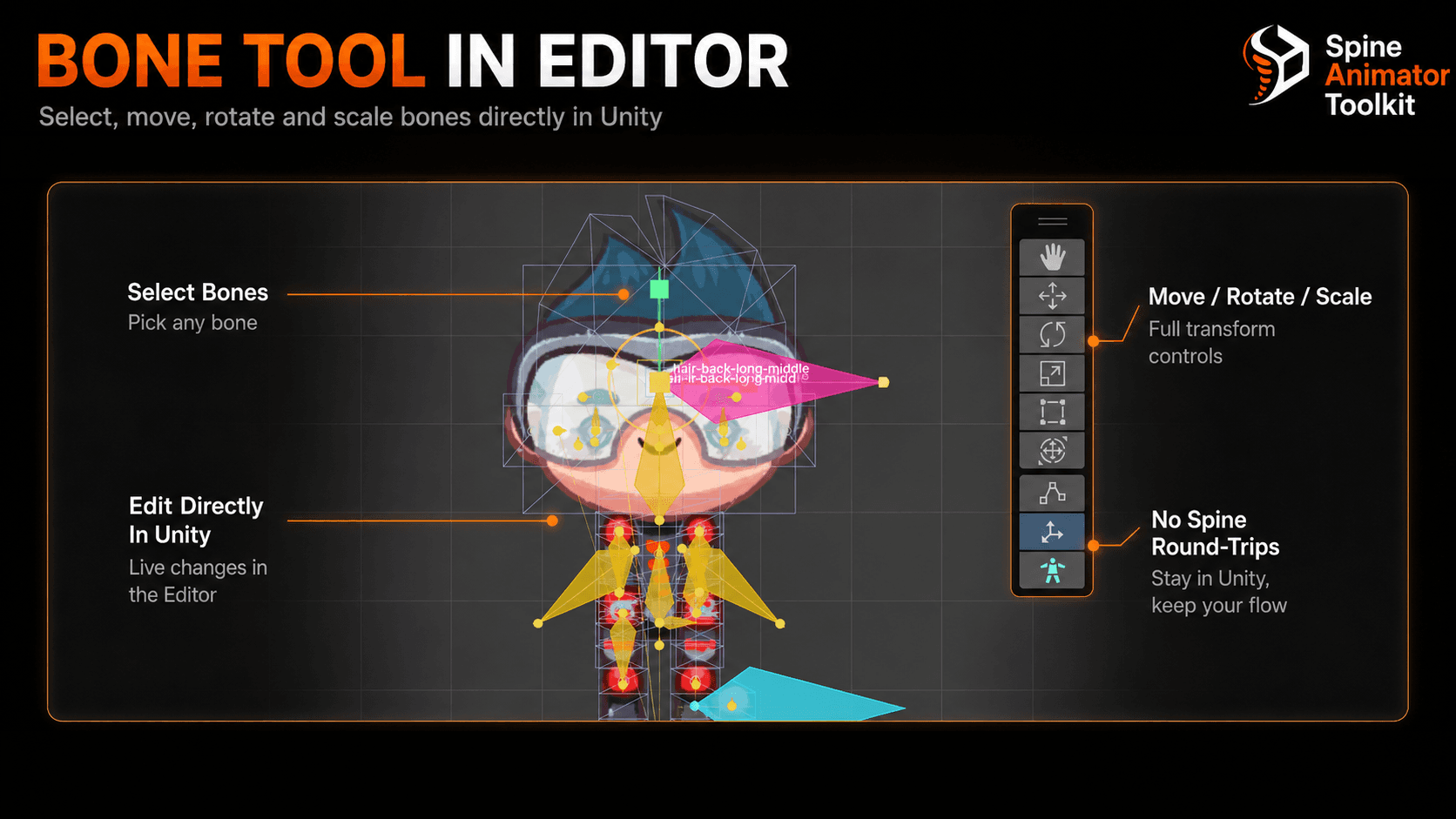
Mecanim
Each built rig ships with an AnimatorController wired up with one state perAnimationClip. Replace it with your own controller, add transitions, parameters, blend trees — standard workflow. The clips themselves carry loop time / loop pose flags from the Spine source.
Timeline
Drag any baked AnimationClip onto a Timeline Animation Track bound to the prefab’s Animator. Works out of the box. Use Animation Override Tracks to layer Timeline-authored hand animation over baked locomotion.
Animation Rigging
In SkinnedMesh mode the rig is a normal SkinnedMeshRenderer with a bone hierarchy — attach runtime constraints (IK, Multi-Aim, Multi-Parent, …) just like on a 3D character. The baked clips drive the base pose; runtime constraints layer on top.
Cinemachine
Bone transforms are addressable from Cinemachine’s Target Group and LookAt fields. Pin a virtual camera to the rig’s head bone, parent a Cinemachine Target to a hand, etc. — everything is a Transform.
Addressables / AssetBundles
Built prefabs are normal assets — mark them Addressable, bundle them, load them async, instantiate them. The toolkit runtime DLL is not required in the loaded build, so bundle size is minimal.
Visual Effect Graph / Particles
Bone Transforms can drive VFX Graph properties through the standard Property Binders. Spawn sparks from a sword tip bone, trail dust from a foot bone, drive cloth from a hip bone — all without any toolkit- specific API.
14. Performance & build size
Native baking trades one-time editor cost for permanent runtime savings.
Per-frame CPU
- No constraint solver — the heaviest part of Spine’s runtime (IK / path constraints) is gone in baked output.
- No managed allocations — Unity’s curve evaluator is GC-free; Spine’s solver allocates per-frame buffers.
- Job-friendly — Animator updates are batched and multi-threaded by Unity.
Memory
- Sprite mode: ~the same as your Spine atlas + a few KB of clip data per animation.
- SkinnedMesh mode: one Mesh asset (~hundreds of KB), one SkinnedMeshRenderer, BlendShape frames as needed.
- Clip quantization typically yields 2×–10× smaller curves than raw fixed-rate sampling.
IL2CPP / build size
Purely-baked output drops the entire Spine runtime: roughly ~400–700 KB stripped for IL2CPP players, depending on platform. WebGL builds in particular benefit because Spine’s managed references prevent aggressive code stripping.
Profiling checklist
- Confirm only the Animator and your renderers show in Update samples.
- For SkinnedMesh rigs, ensure GPU skinning is enabled (Project Settings).
- Batch slots by atlas page if you ship many Sprite-mode rigs on one screen.
- Disable Animator on off-screen rigs (or use Animator Culling Mode = Cull Update Transforms).
15. Platforms & render pipelines
Output is standard Unity, so it ships everywhere Unity ships:
- Render pipelines: Built-in, URP, HDRP.
- Platforms: Windows, macOS, Linux, iOS, Android, WebGL, PS4 / PS5, Xbox One / Series, Switch — any Unity build target.
- Scripting backend: Mono or IL2CPP. Stripping at any level is safe on the baked output.
- XR: AR Foundation, OpenXR — baked prefabs render in stereo without additional setup.
The toolkit’s editor DLL is editor-only and is never included in player builds. The runtime DLL is only included if a baked prefab still references its components — for purely baked output, it is excluded automatically by Unity’s stripping.
WebGL specifics
- Set Pixels per Unit to a power of two for crisp 2D rendering.
- Enable Compression Format = Brotli on the build to halve clip download size.
- Atlas mode is recommended over Separate mode to keep the file count low.
Console specifics
- SkinnedMesh mode + GPU skinning takes full advantage of console hardware skinning.
- The toolkit doesn’t use reflection at runtime, so AOT / ahead-of-time stripping is safe.
16. Migrating from spine-unity
Moving an existing project off the official Spine runtime usually takes an hour or two.
- Bake your rigs with the toolkit alongside the spine-unity ones — output goes to a separate folder, no conflict.
- Compare animations in the preview pane vs the spine-unity prefab. Tweak bake rate / eps until visual parity is achieved.
- Swap prefab references. Anywhere your code spawns a
SkeletonAnimationorSkeletonGraphic, swap the prefab reference to the baked one. - Replace API calls.
skeletonAnimation.AnimationName = "walk"→animator.Play("walk").skeleton.SetAttachment("slot", "att")→ assign a Sprite to the slot’s SpriteRenderer (or a BlendShape weight).- Skin swaps → toggle the relevant SpriteRenderer / BlendShape group; the toolkit emits one BlendShape group per skin.
- Remove the spine-unity package from your project. The toolkit’s output has no remaining references.
What you give up
- Procedural runtime bone control beyond what you opt to keep live (transform / path / IK constraints) — you can still move any bone Transform directly, but Spine’s skeleton API surface is gone.
- Spine events — replaced by Unity AnimationEvents emitted on the equivalent frames. Same signature pattern, just routed through the standard Animator.
17. Scripting API
Purely-baked rigs need no API at all. When you opt into live constraints, a small number of MonoBehaviours are attached to the prefab.
SpineIK
var ik = rigInstance.GetComponentInChildren<SpineIK>();
ik.target = playerHandIKTarget;      // Transform
ik.weight = 1f;                      // 0..1, animatable
ik.bendDirection = 1;                // +1 or -1
SpinePathConstraint
var path = rigInstance.GetComponentInChildren<SpinePathConstraint>();
path.position  = 0.25f;              // 0..1 along path
path.spacing   = 0f;
path.mixRotate = 1f;
path.mixX = path.mixY = 1f;
SpineTransformConstraint
var tc = bone.GetComponent<SpineTransformConstraint>();
tc.source       = otherBone;
tc.positionMix  = 1f;
tc.rotationMix  = 1f;
tc.scaleMix     = 0f;
tc.worldSpace   = true;
Editor hooks
The editor assembly exposes two extensibility points:
ISpineImportPostprocessor— receive a callback when a rig finishes building. Modify the prefab, append components, retag assets.ISpineCurveFilter— intercept curve quantization to apply custom smoothing or remap easing.
See Documentation~/api/ in the package for the full XML doc output.
18. Troubleshooting
“Importer can’t read my .skel file”
Spine exports binary .skel files in a versioned format. Re-export from Spine 4.x, or export JSON (.json) and use that instead. The toolkit’s parser is forked from the official Spine 4.3 C# runtime, so any binary newer than that needs JSON.
Atlas page not found
The .atlas file references PNG pages by name. Make sure the PNG sits next to the .atlas in your project and the names match exactly (case-sensitive on macOS/Linux).
Baked animation looks slightly different from Spine playback
- Increase Bake frame rate (default 30 → try 60). Curves are sampled at this rate.
- Lower Curve epsilon to
0.00001for frame-exact fidelity. - Check that your Spine version’s constraint set is supported (see the constraint matrix above).
Sprite sorting / Z-order issues
In Sprite mode each slot becomes its own SpriteRenderer with an orderInLayer derived from Spine’s draw order. If you change layer/sorting after build, re-build or adjust on the prefab. For multi-character scenes, set a base offset per character so their orders don’t collide.
SkinnedMesh has visual seams
Spine meshes with hard edges can show seams when re-skinned. Enable Weld vertices in the per-rig override, or switch that rig to Sprite mode.
BlendShapes captured in Mesh Tool disappeared
Re-baking the rig with a different mesh topology (vertex count or order change) invalidates BlendShape deltas. The toolkit warns before overwriting; keep a backup of the SkinnedMesh asset if you do experimental re-bakes.
Foot / hand “floats” in animation
Usually means a transform / path constraint should be live but is baked. Open the per-rig settings, find the constraint that owns the bone, and tick Keep live. Re-build.
I imported a sample but it doesn’t show in Project
Samples live in Samples~/ (the tilde hides them from Unity’s Project view). Open Package Manager, find the toolkit, expand Samples, and click Import to copy a sample into Assets/Samples/.
19. FAQ
Do I still need Spine?
Only at authoring time, to create the rigs and export the source files. After conversion, no.
Does the toolkit’s runtime DLL ship with my game?
No — baked output uses standard Unity renderers and AnimationClips only. Unity’s stripper excludes the runtime DLL automatically when no baked asset references it.
Sprite or SkinnedMesh — which should I pick?
Sprite for most 2D games (smaller, simpler, fastest). SkinnedMesh if you need mesh deform, BlendShapes, runtime constraints (Animation Rigging) or smooth vertex skinning. Pick Dual to ship both.
Which Spine versions are supported?
Spine 3.8 and Spine 4.x are supported. The vendored parser updates with each toolkit release — check CHANGELOG.md for the current matrix.
Can I extend the import / build pipeline?
Yes — see Scripting API for the importer and builder hooks.
Can I use it with URP / HDRP?
Yes. Output is plain renderers; the materials use whatever default sprite / lit material your render pipeline provides. Override after build if needed.
Can I animate the rig procedurally at runtime?
Yes. Each bone is a normal Unity Transform — rotate or translate it in LateUpdate and the Animator’s curves will blend with your edits (use Animator layers or zero-weight states for full procedural control).
Does it support 2D physics on baked rigs?
Yes. Add 2D colliders / rigidbodies to bones or slots like any Unity hierarchy. For rope / cloth / pendulum effects driven by physics, opt into live transform constraints on the affected chain.
Can multiple rigs share an atlas?
Yes — if your Spine exports share a PNG, the toolkit detects the shared texture and reuses it across prefabs. Materials are shared automatically.
What about Spine events?
Spine events are converted to Unity AnimationEvents on the equivalent frame, with the event name as the function and the int / float / string payload as the argument. Subscribe with the standardAnimationEvent pattern on a MonoBehaviour attached to the rig.
20. Support
Need help, found a bug, or have a feature request?
- Open a support ticket — we reply within one business day.
- Bundle your Spine source (or a minimal repro) when reporting bugs — it cuts response time dramatically.
See also the Documentation~/ folder inside the package for the in-depth reference (rig.json format spec, internal architecture, API hooks).